 Nagi.md
Nagi.md
A simple, refined WYSIWYG Markdown editor
Text, tables, and diagrams. Edit Markdown as it looks.
Use the same editor on the web, in the editor extension, and on Windows.
Free · No installation · No account


Write directly in the preview. Edit tables, diagrams, and note links in the same interface on the web, in the editor extension, and on Windows.
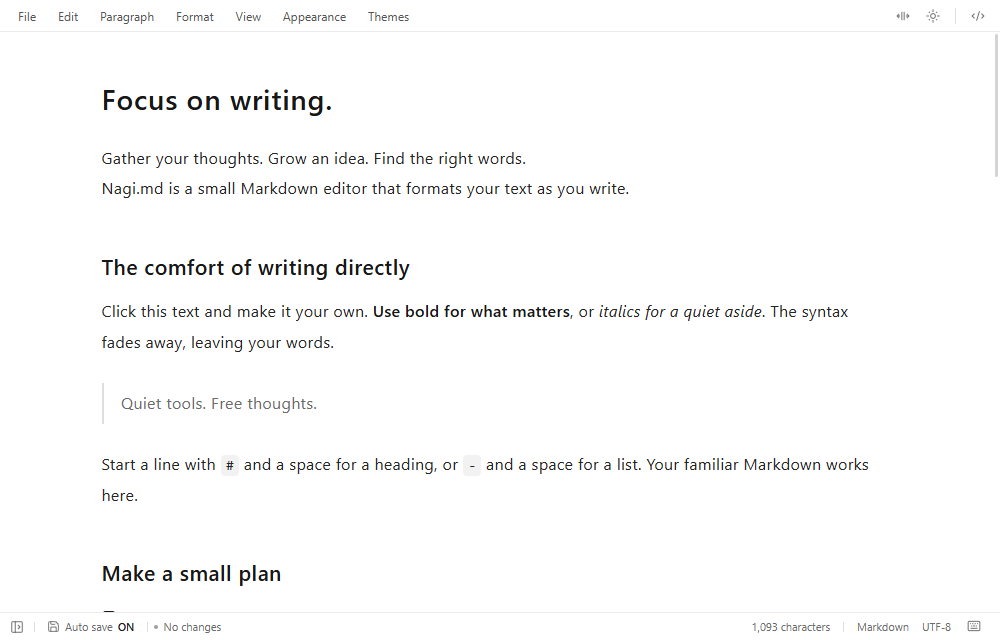
Easy to read. Easy to write.
No need to place source and preview side by side. Edit the text exactly as it appears.
Write in the preview
Headings, bold, and lists take shape as you type. The syntax fades away, leaving your words.
Tables and diagrams, right here
Edit table cells directly and drag rows or columns to reorder them. Click a Mermaid diagram to edit its definition.
Familiar Markdown
Save ordinary Markdown files. Switch to source editing with one button whenever you need it.
Edit diagrams right inside your document.
PlantUML: Preview
Mermaid flowcharts, PlantUML sequence and class diagrams. Click a diagram to edit its definition, and save it with your text as Markdown. PlantUML is a preview feature. Viewing and editing are verified on the web; the editor extension and Windows app are still being tested.

Click to edit the definition
Click a diagram to open its definition right below it. The diagram redraws as you type; choose Done to return to the document.
No Java, no rendering server
You don't need to install Java or set up an external rendering server for PlantUML. Diagram definitions are rendered on your device.
Try the sample
A short spec note with text, a table, Mermaid, and PlantUML. Drop the downloaded file onto the web app, or open it with File → Open….
Simple, yet powerful
One row of menus at the top. A quiet interface with everything you need to write documents.
Direct table editing
Type in a cell and press Tab for the next one. Right-click to add, remove, or move rows and columns.
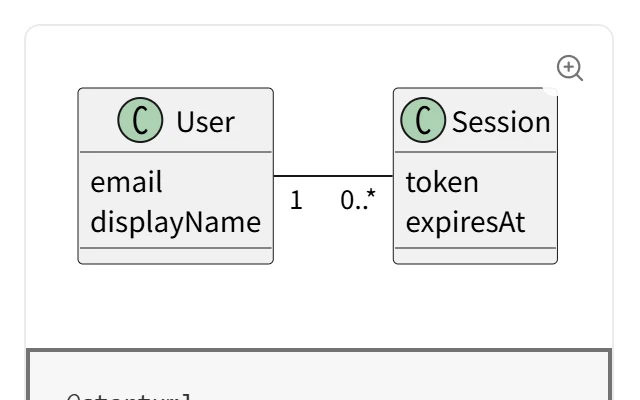
Mermaid & PlantUML diagrams
Diagrams render in place. Click to edit the definition and save it with your text. PlantUML is a preview
Syntax highlighting
Choose a code language for highlighting. Copy just the code with the button at the top right.
Outline
Heading levels appear with guide lines. Select a heading to jump to it.
Light / dark
Switch with one button. Diagram colors follow the same mode.
Custom CSS
Adjust fonts, width, and line height, or customize the design with CSS. Imported document themes are supported.
And more
Source editing
Edit the Markdown source with one button. Return to see your changes rendered.
Find in document
Search rendered text or source. Match counts update as you type.
Focus mode
Hide the menus and sidebar to focus on the text. Toggle with F8.
Auto save
Save when focus leaves the document or the window becomes inactive. Turn it on or off.
Keyboard controls
Use shortcuts for formatting and viewing modes. Open their list from the menu.
Responsive editing
Diagrams and syntax highlighting load when needed, keeping long documents responsive.
Why Nagi.md
Write wherever you work, with tools that fit your everyday workflow.
On the web, in your editor,
and on desktop
The same editing interface runs in the web app, editor extension, and Windows app. Write in the browser without installing, beside your code, or in a desktop window.
- Open the web app in your browser. No installation or account required
- Open the extension alongside your code
- Open the same document between the extension and desktop app with one button
Wiki-style note links
[[Note name]] or [[Note name|Label]] are displayed as links and open on click. Find linked notes throughout the vault.
- Include the folder when multiple notes have the same name
- Keep the original link syntax when saving
- Open and edit the notes in your existing folders
Stay in sync with external edits
When another tool changes a file while you write, edits in separate parts are merged automatically.
Ready before you open
The Windows app stays in the notification area and prepares the next editor window..md opens with less waiting after a double-click.
Read the changes, too
Source-control diffs can open as rendered previews. Added paragraphs are green, removed paragraphs red, and changed words highlighted.
Start using Nagi.md
The web app and editor extension are free. The Windows app is free for reading, with editing offered as a monthly subscription.
- Web appFreeOpen web app
- Editor extensionFreeComing soon
- Windows appUS$2.99 / monthFree for reading · Coming soon
Frequently asked questions
Do I need an account?
No account is needed for the web app; just open it in your browser. How purchases and subscriptions are verified in the Windows app will be announced on the pricing page when sales begin.
Where are documents saved?
Documents are saved as Markdown files on your computer. Their contents are not sent to an external server. Web drafts stay only in your browser.
Can I use an existing note vault?
The web app opens individual Markdown files. Automatically resolving other notes and relative images in a vault is available in the extension and Windows app.
Can I use macOS or Linux?
The desktop app currently supports Windows. Use the editor extension or web app on macOS and Linux.
Do I need to set anything up for PlantUML?
No Java installation or external rendering server is required. Mark a Markdown code block as plantuml or puml to display it as a diagram. The rendering engine loads the first time you use it. PlantUML is a preview feature: viewing and editing are verified on the web, and the editor extension and Windows app are still being tested.
Can I use any PlantUML file as is?
So far, basic diagrams such as sequence and class diagrams have been verified. !include, loading additional libraries, and images or links inside diagrams are not supported. See the feature availability table for details.
Are math and footnotes supported?
Math is rendered with KaTeX and can be edited as TeX. Footnote references and note text can also be edited.
Open quickly. Start writing.
Try the web app first, without installing anything.